.svg)


Vibe Analytics: A collaborative approach to AI data exploration

TL;DR: Learn how to chat with your data using AI instead of writing SQL or waiting for analysts. This step-by-step guide shows you how to connect your database to Fabi's AI analyst and integrate it with Claude Desktop, enabling instant ad hoc analytics through natural language queries. Set up takes less than 10 minutes and works with any data source.
Data analysis and asking ad hoc analytics questions used to mean waiting days for a dashboard or writing complex SQL queries yourself. That’s completely changing with AI as many of us fully understand at this stage. However, I found that there’s still a large discrepancy between the amount of talk of text to SQL and how easy it is to actually deploy. We already have customers who love our Analyst Agent to perform exploratory data analysis and ask ad hoc questions, but we were getting an overwhelming number of requests to expose this functionality to other AI agents so that the power of our AI could be leveraged everywhere the team works.
This is a practical how-to tutorial that shows you how to quickly start chatting with any of your data in your AI client of choice. In this demo we use Supabase as the data source, Fabi as the AI data analyst agent, and Claude as the client where you can talk to your data.
What you need:
We also have a companion video if you’re more of a visual learner:
.webp)
Think about the last time you needed to answer a quick business question. Maybe your manager asked "How many new users signed up last week compared to the week before?" or "What's our average order value by region?"
If you're like most teams, answering these questions meant one of three things:
This is where ad hoc analytics comes in - the ability to ask spontaneous, unplanned questions of your data without writing code or waiting in a queue. And with AI-powered text to SQL capabilities, ad hoc data analysis has never been easier.
Instead of learning SQL syntax or bothering your data team, you can literally chat with your data like you're texting a colleague: "Show me our top 10 customers by revenue this quarter" or "What percentage of users who signed up in January are still active?"
The AI understands your question, writes the SQL for you, executes it, and gives you an answer - often with a helpful visualization. It's like having a data analyst in your pocket 24/7.
In this example we'll be using Supabase as our data source - it's a popular serverless Postgres instance with a generous free tier and super easy to get started with. If you don't already have an account, go ahead and create one for free and upload some data. You can use a CSV file, connect an existing database, or even use one of their sample datasets to test things out.
Once you have data in Supabase, getting your credentials is straightforward:
From your project, click Connect next to the branch name at the top, then select "Session pooler" under the "Method" dropdown.

You'll see a connection string that looks like: postgresql://postgres.[USER]:[YOUR-PASSWORD]@[ADDRESS]:5432/postgres

The easiest way to get all the details you need is to expand the "parameters" section below the connection string. This will show you the host, port, database name, user, and password separately - which makes copying them over much simpler.
Now that you have your credentials, head over to your Fabi account. If you don't already have one, you can create one for free in about 2 minutes: https://app.fabi.ai/
From any Smartbook or the chat interface, click "Add data source" then look for your data source type. In our case we're going to select Supabase, then enter the credentials we got in the previous step.
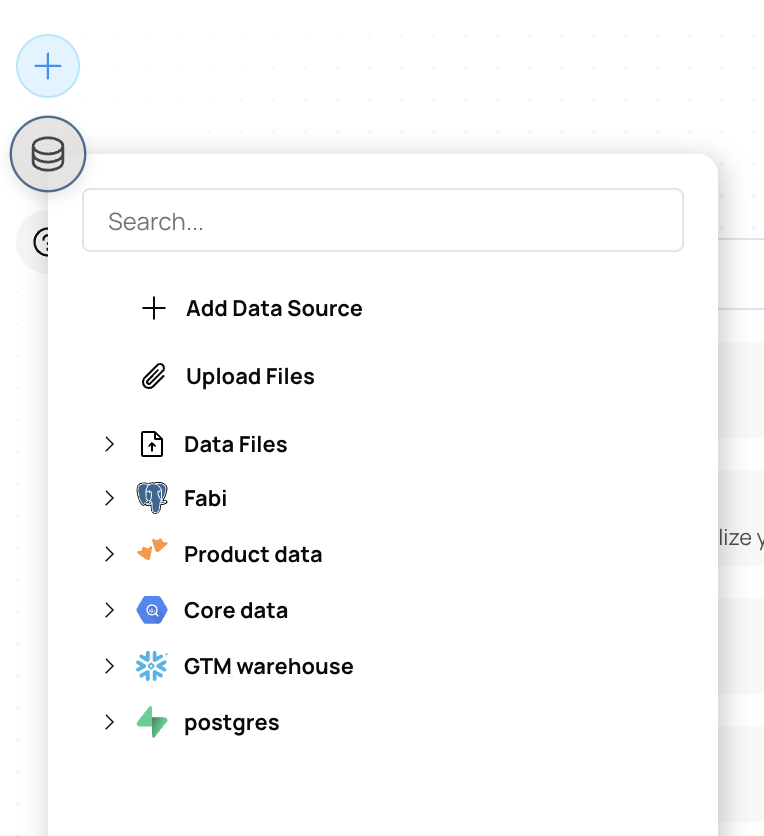
Once you hit Submit, Fabi will crawl your database schema and sample some values to understand your data structure. This is what enables the AI to write accurate queries later - it learns your table names, column types, and how different tables relate to each other. The whole process usually takes just 30 seconds to a few minutes depending on your database size.
Fabi supports an incredibly wide set of connectors which you can find here: https://www.fabi.ai/integrations
Before we hook up the Fabi MCP server to your client, let's first make sure the AI data analyst behaves the way you want it to. This is an important step - you want to verify that the AI understands your data correctly and gives you useful answers.
Create a new analysis and ask the AI a few questions about your data. Try starting simple: "How many rows are in my users table?" Then move to more complex questions: "What's the average order value by month for the last 6 months?"
Pay attention to whether the AI:
If you notice the AI making mistakes or if you want to tune the responses, you can provide additional context. Click on the overflow menu (three dots) next to the data source and add information like:
This configuration is only available for admins and applies to everyone in your organization, which means you set it up once and everyone benefits from improved accuracy.
Now that you've connected your data and verified that the Analyst Agent works the way you want it to, we can connect it to your AI client of choice. This is where the magic really happens - you can chat with your data directly from Claude, making ad hoc data analysis as easy as having a conversation.
In Claude (we're using Claude Desktop here), click on your name in the top right, then select Connectors. From there click "Add custom connector" then in the URL field paste: https://app.fabi.ai/mcp
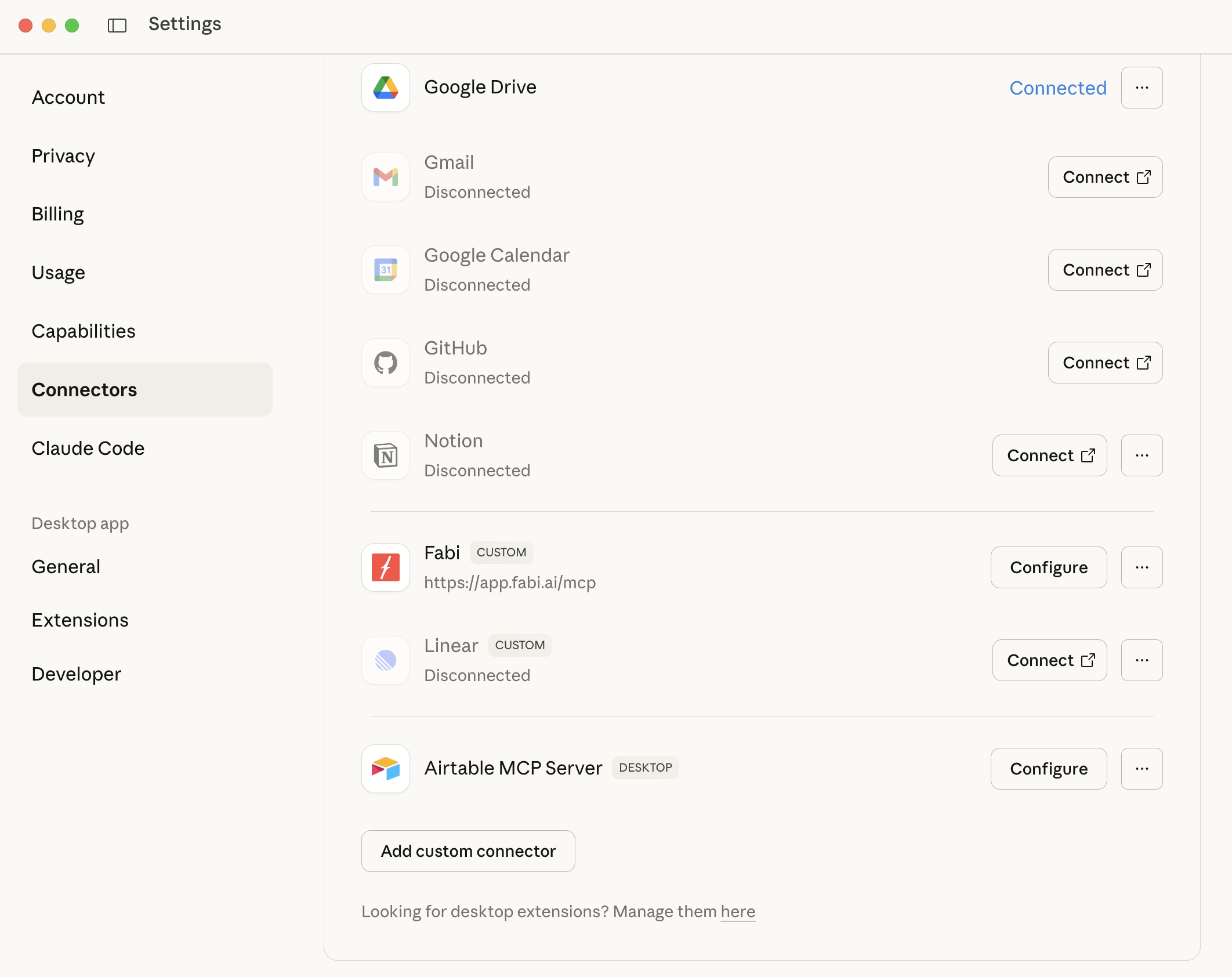
Once you submit this, you'll be prompted to authenticate and authorize Claude to access your Fabi account. This OAuth flow ensures your data stays secure - you're explicitly giving permission for Claude to query your data through Fabi.
Once that's completed, restart your Claude Desktop app. If you're using Claude in the browser, simply refresh your browser window.
You're connected!
Let's test out the connection. Open a new chat in Claude and ask a question about your data. Something like: "How many users do I have in my database?" or "What were my top selling products last month?"
Pro tip: After first connecting a new tool, you sometimes need to guide the AI on what tool to use. Claude has access to multiple tools (web search, code execution, etc.), so it might not immediately know you want it to query your database. If it doesn't use Fabi on the first try, just nudge it: "Use Fabi to query my database for this information." After that initial guidance, it'll usually understand when to use Fabi for subsequent data questions.
You can also create a project or add a custom instruction to provide context about when to use Fabi: "I have a Fabi connector set up that can query my Supabase database. When I ask questions about my users, orders, or business metrics, use the Fabi tool to run text to SQL queries against my database."
Once you have this set up, the possibilities are endless. You're no longer constrained by pre-built dashboards or dependent on data team availability. You can:
The beauty of text to SQL technology is that it removes the barrier between you and your data. You don't need to be a data analyst to do ad hoc data analysis anymore - you just need to know what questions to ask.
Claude is just one interface where you or your team may want to ask ad hoc data questions. Lots of teams want to bring this functionality to Slack, email, and other workspaces where they're already spending their day.
You can just as easily integrate Fabi following a similar approach to what we've shown here, as long as the application supports authentication using OAuth. But we also provide token-based authentication if you want to integrate the Fabi MCP server as part of an agentic framework or workflow that doesn't require individual authentication.
For example, if you want everyone on the team to be able to tag a Slackbot that can call a variety of tools (including Fabi for data queries), you can use frameworks like AgentKit, n8n, or Zapier to accomplish this. The bot would have a single Fabi token and could answer data questions for anyone who asks - perfect for team channels or company-wide analytics access.
AI is making data analysis democratization a reality and we’re really excited to be able to participate at the cutting edge. We’re seeing teams adopt this functionality to truly change the way their businesses operate we hope that you find it just as useful.
Whether you're a founder who needs quick metrics, a product manager exploring user behavior, or an analyst who wants to speed up their workflow, being able to chat with your data changes everything.
Give it a try with the steps above, and see how much faster you can move when your data is just a conversation away.